|
<< Click to Display Table of Contents >> Setting Up the Simplify3D Slicer Software and ZYYX pro Profiles |
  
|
|
<< Click to Display Table of Contents >> Setting Up the Simplify3D Slicer Software and ZYYX pro Profiles |
|
Below is a simple step-by-step overview of how to set-up the Simplify3D software.
|
1. Scraping code for Simplify 3D Start by finding the Simplify3D redemption card. With the aid of a coin or similar, rub out the gray surface to read the redemption code. Do not use a knife or rub too hard, or you may remove the actual code.
2. Downloading Simplify3D Now go to simplify3d.com/redeem and create a user account with your personal data plus the code you received in 1. |
3. Download ZYYX profiles
Go to www.zyyx3dprinter.com/profiles and download the Simplify3D print profiles. Unpack the zip archive.
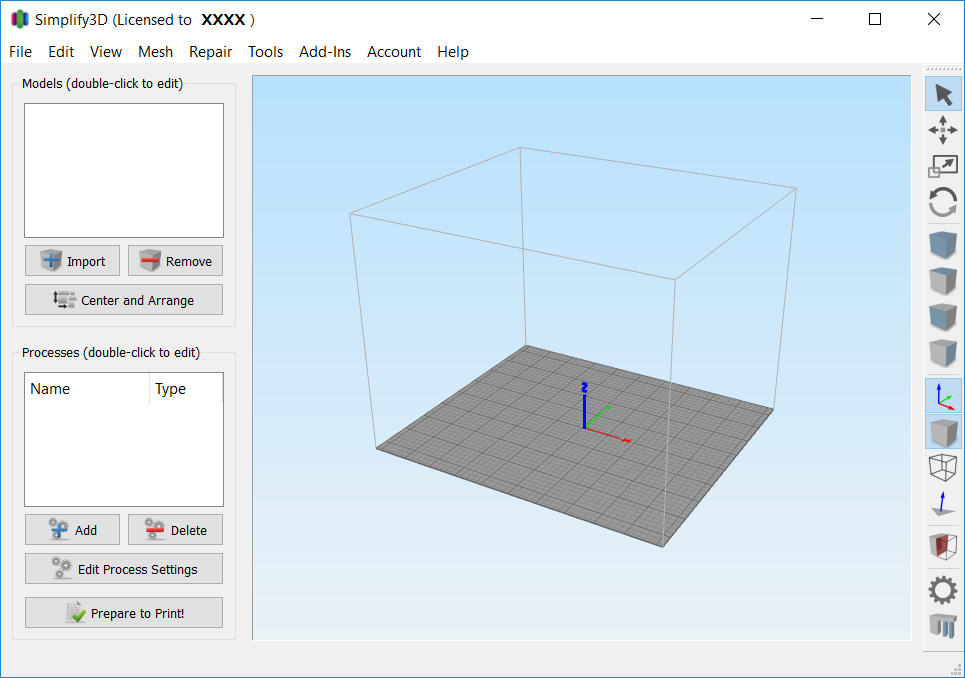
4. Start and initial setup of Simplify3D software Start the Simplify3D software. A screen such as that shown to the right will appear. If installed correctly, your name is shown on top. If requested for selecting printer click Cancel, and install profiles below. |
|
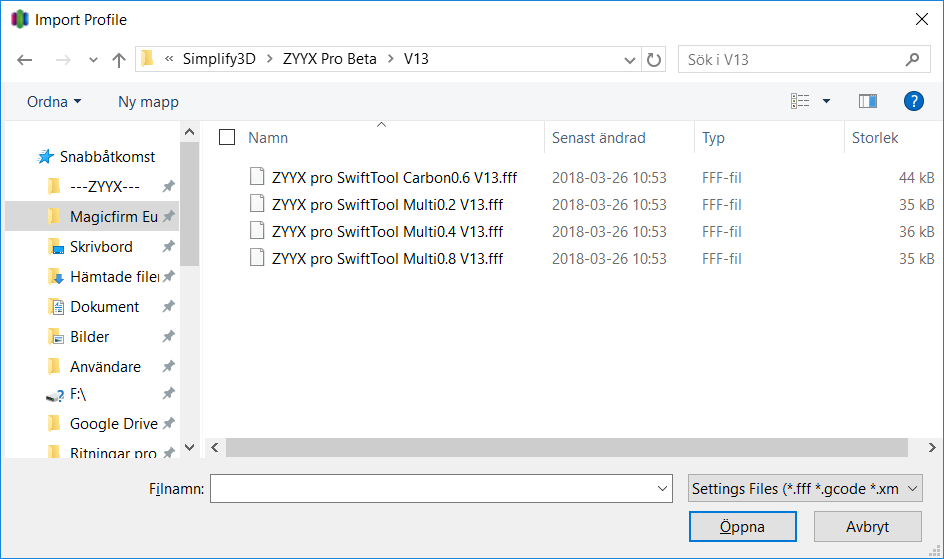
5. Adding ZYYX profiles Go to menu File-Import FFF Files, and select the files downloaded and unpacked in 3. Select the files (one for each SwiftTool type that you will use). Click open. |
|
Simplify3D is now set up for use.